 Photo Vault
Start with a small selection, check how it looks in the gallery, and verify an export before deleting originals.
1. Choose your lock
Set up a password, pattern or supported device authentication. Keep your unlock method safe. You can change the method in Settings.
2. Import photos and videos
Choose media from Photos or a supported file source. The app stores imported media in its local archive and keeps available metadata in an encrypted index. If iOS asks to remove originals from Photos, decline to keep them. Importing is not a reason to delete your only copy.
3. Explore your library
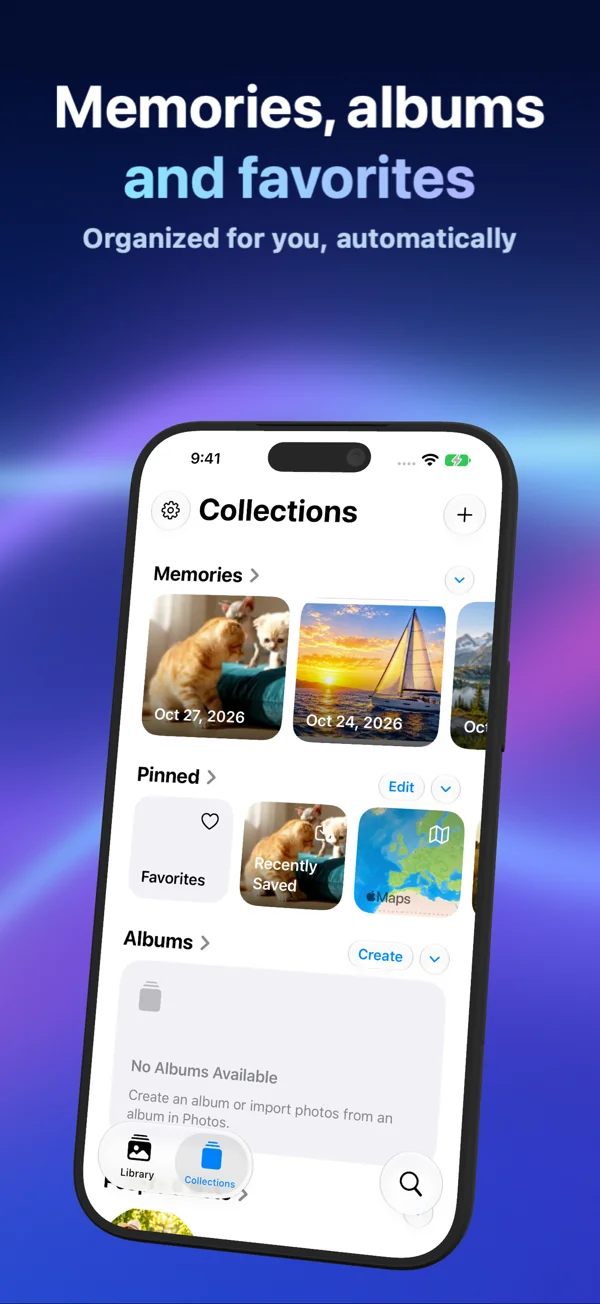
Browse photos, videos, supported Live Photos and panoramas. Organize collections, search recognized content and available metadata, or open the map for media with coordinates. Apple Maps and place-name lookups can use the network.
4. Share a protected archive
Select media and choose Secure Share. Set and confirm a password or pattern for the exported file. On the receiving device, use Secure Import and supply the matching credential. Check the imported media before relying on this copy.
5. Check quality and keep a backup
Lossy compression can change image detail. Export a sample and check image detail, dates, video audio and Live Photo motion. Keep independent originals where exact fidelity matters. Deletion from the vault is permanent after confirmation.
Keep exploring
- Photo Vault security: encryption, app lock and sharing
- How much space can a photo archive save? Measure your own library
- Export photos and videos from Photo Vault
- Photo Vault image quality: resolution, compression and exports
- Move Photo Vault to a new iPhone or iPad
- Forgot your photo vault password? Start with the exact app
- Does deleting a photo vault app delete its photos?
- Photo Vault’s MOV archive: compression, metadata and recovery